

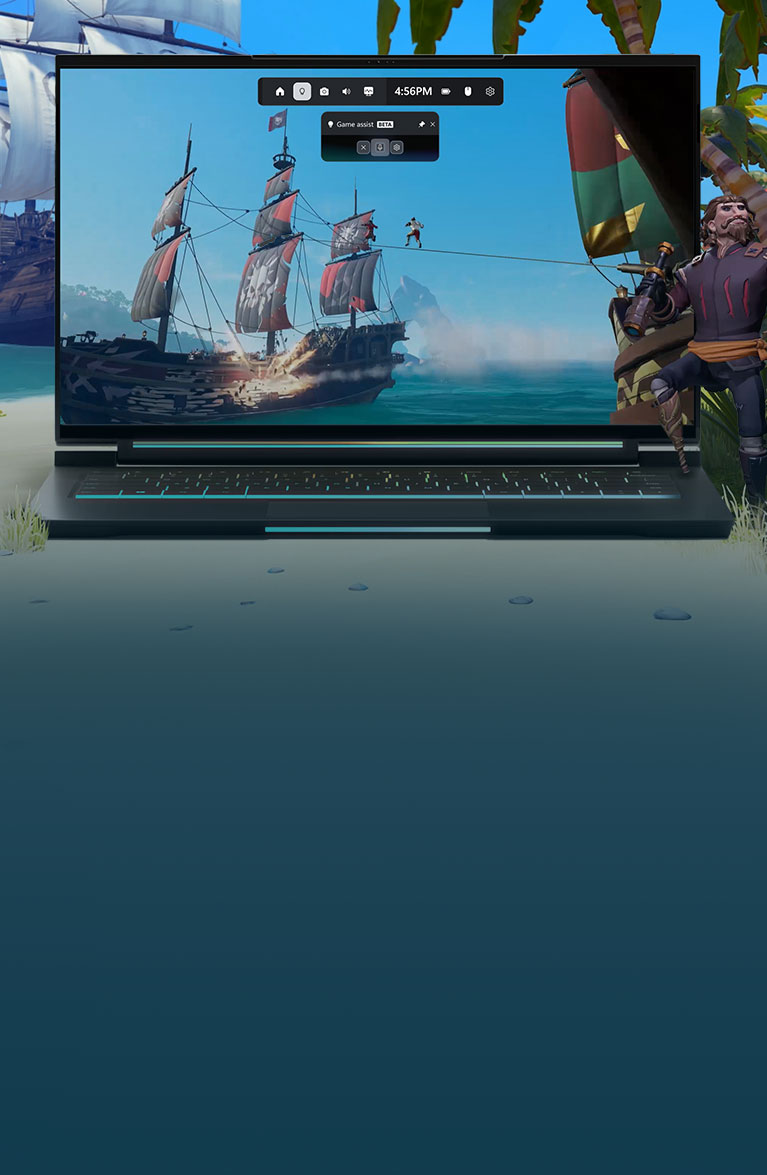
Get to the fun, faster
Get gaming recommendations and help about what you’re playing or your play history.
Get help without
leaving your game
With in-game assistance, get unstuck, pass roadblocks, and level-up your gameplay.
The guide you want,
when you want it
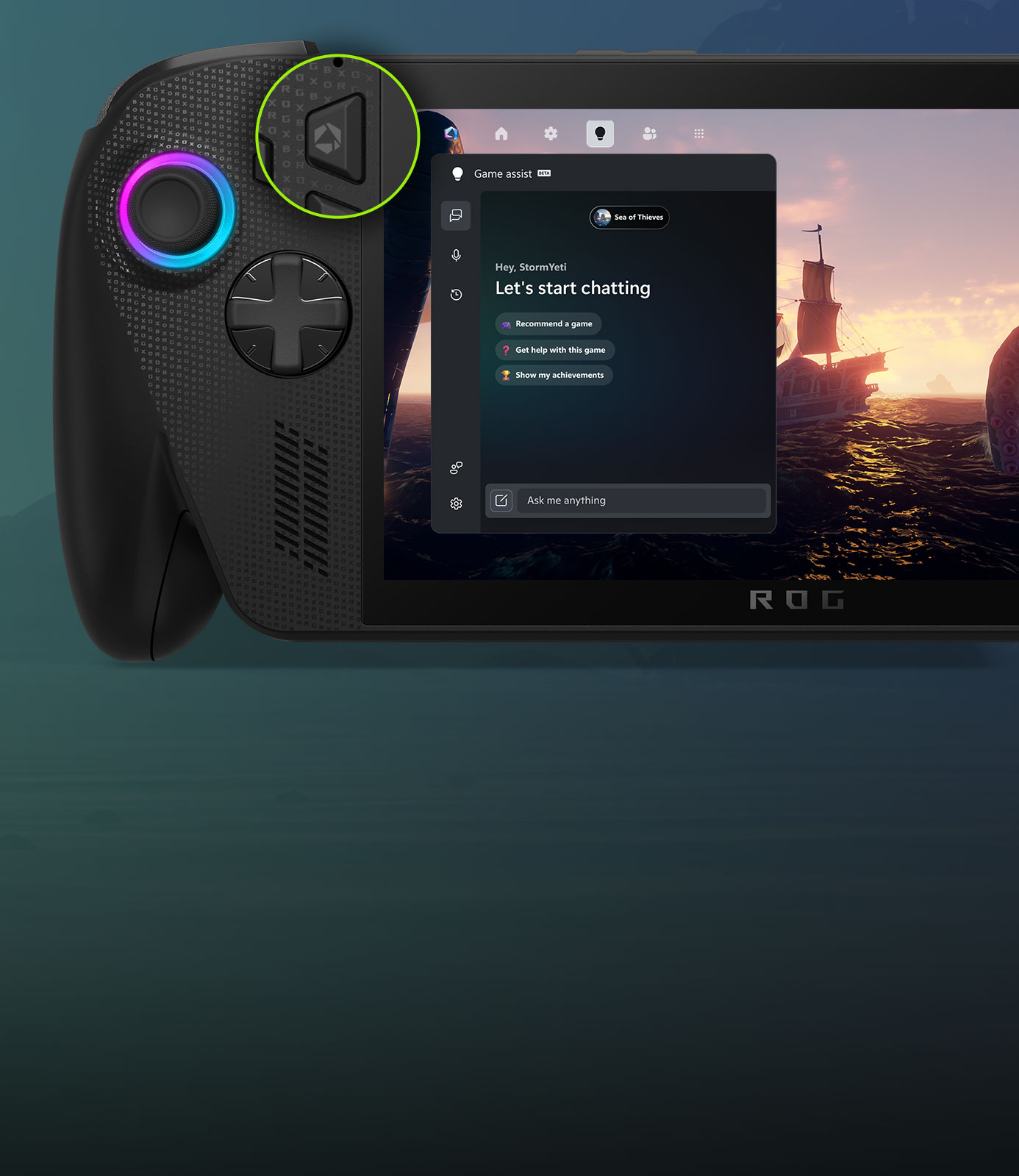
Brainstorm strategies and get tips or insights with personalized coaching.





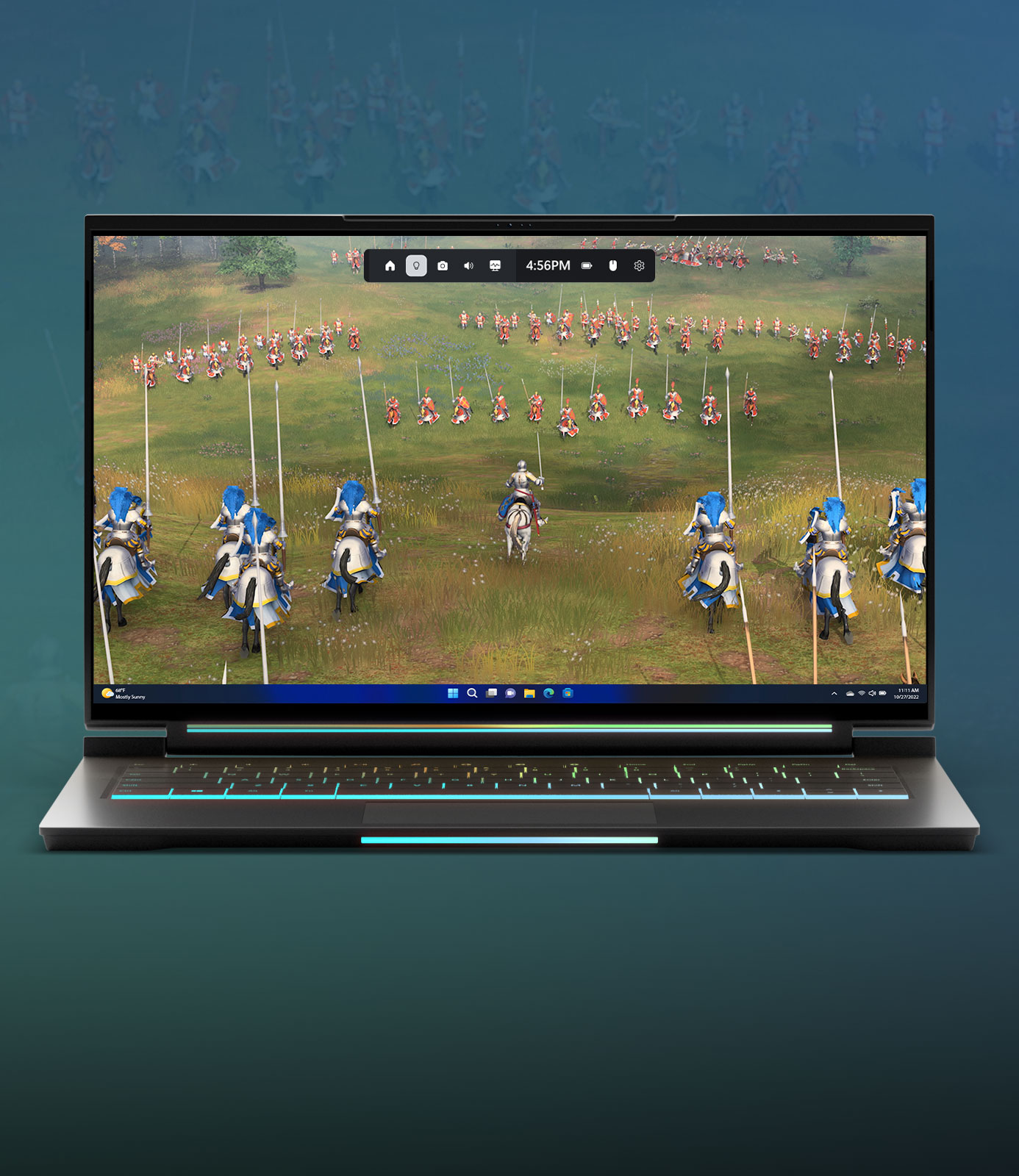
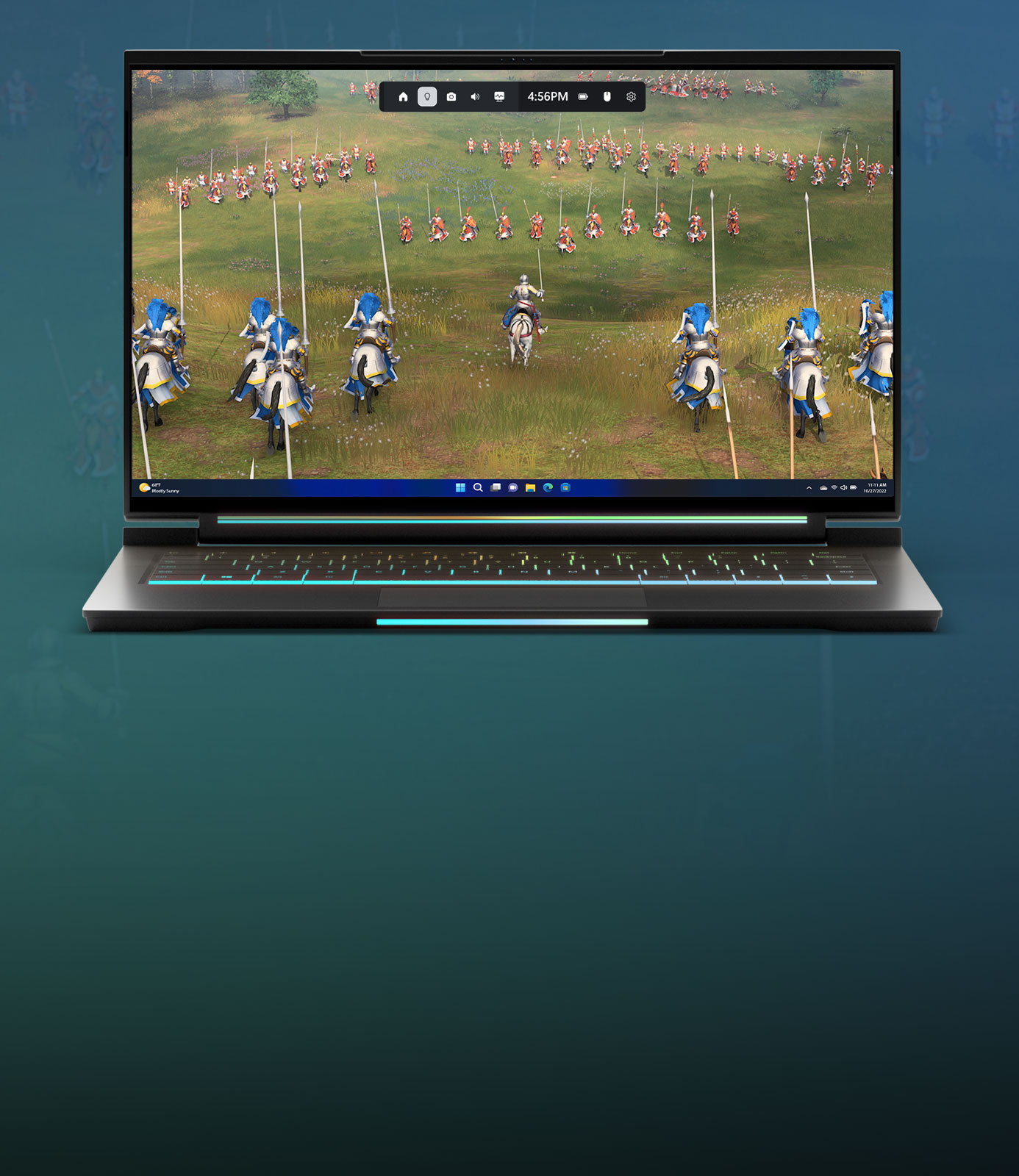
Windows 11 PC

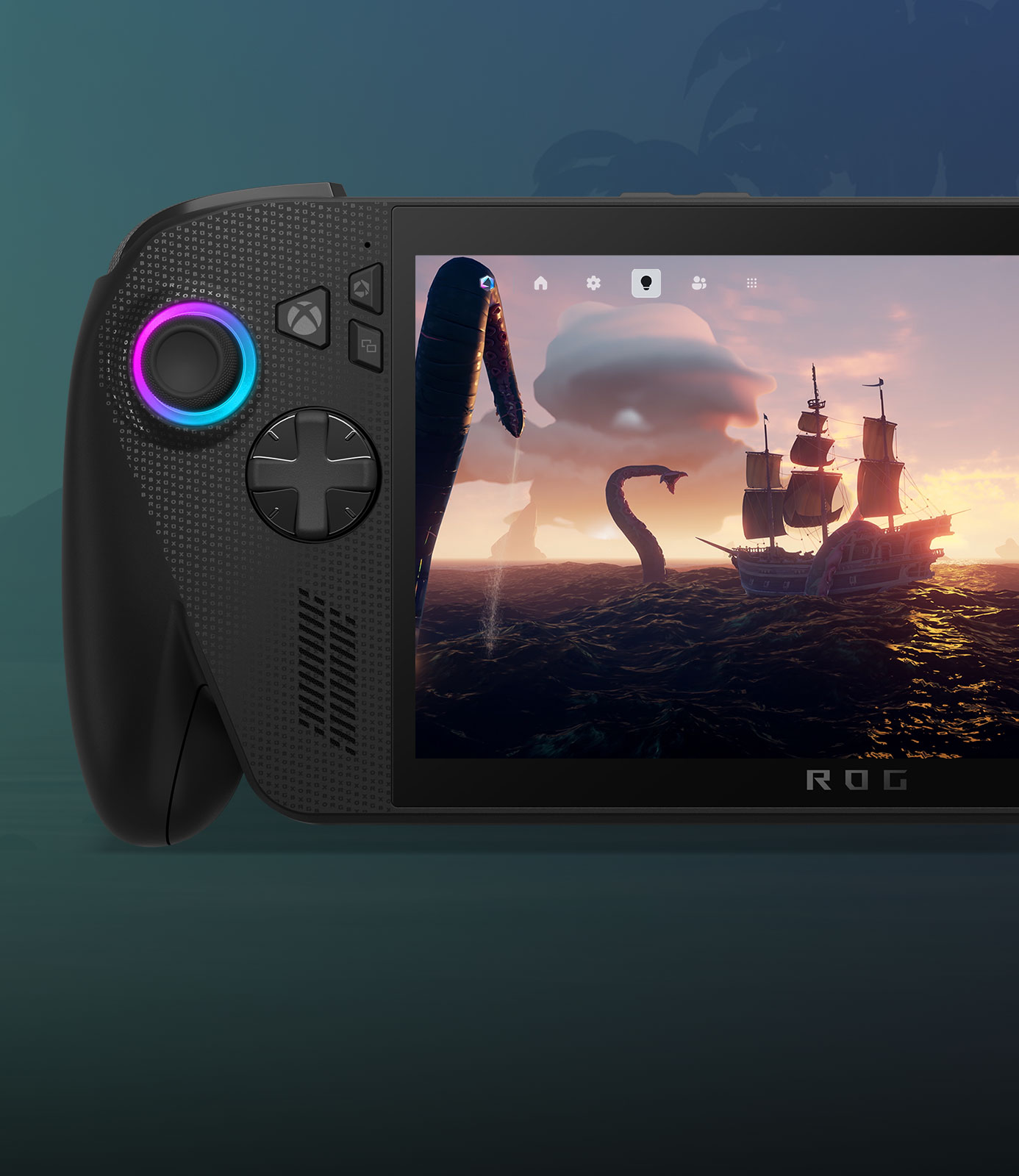
ROG XBOX Ally
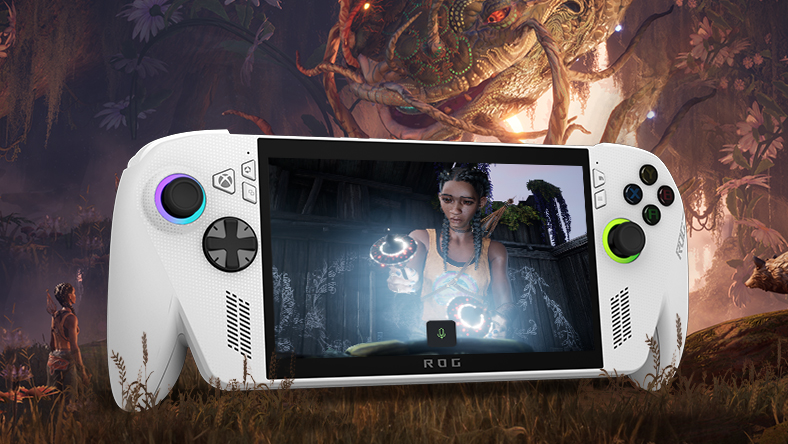
Push to talk
Now available on ROG XBOX Ally. Push the Command Center button to get started.
Frequently Asked Questions
You must be 18 years or older.
Ask questions in chat or speak directly with game assist using your voice. Here are some examples of questions you can ask:
Ask questions about a specific game or the one you're currently playing.
- “Can you remind me what materials I need to craft a sword in Minecraft?"
- “I’m stuck on [Game Boss] right now. Can you give me some tips on how to beat this boss?”
- "What’s my gamerscore and can you give me some tips on how to increase it?"
Ask for game recommendations. If you’re new to XBOX, tell game assist about your favorite games or entertainment genres and let it recommend new games. If you’re a seasoned player, ask for recommendations on what game to play next based on your gaming history.
- “What should I play tonight?”
- “I love horror movies. Any suggestions for what game I should play?”
- “I’m looking for a new RPG. Can you recommend something that has released on XBOX recently?”
Ask about your play history or account, such as XBOX achievements or subscriptions.
- “What’s the rarest achievement you can get in Avowed?”
- “What was the last achievement I got in Starfield?”
- “When does my Game Pass subscription renew?”
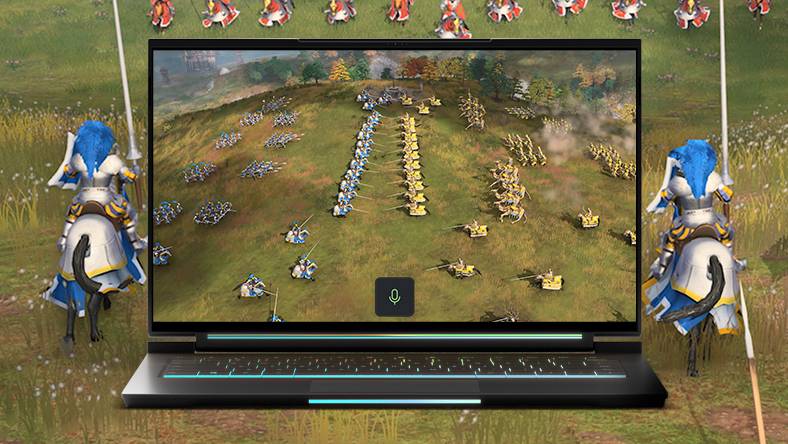
Yes. When using game assist on PC, and on ROG XBOX Ally, there are multiple ways to interact with game assist using your voice:
On PC:
- Press Windows logo key + G to open Game Bar.
- Go to the game assist widget > Settings > Hardware and Hotkeys.
- In Push-to-talk click the toggle to enable it, then select Record Keybind and press your preferred shortcut, then select Stop Recording.
- To start a voice session using Push-to-talk, press the key combo. Once you hear the audio cue or see a microphone icon pop up, ask your question.
- After game assist responds, the session will automatically end unless you continue talking. If you would like to end the session before game assist finishes responding, press the same shortcut you did to start game assist.
On ROG XBOX Ally X and ROG XBOX Ally:
- Long press and hold the Library button, then release.
- Once you hear the audio cue, or see a microphone icon pop up, begin asking your question.
Make sure your device is up to date with the latest ROG updates. Keep your device plugged in while you update it.
Note: Push-to-talk using a long press is not yet available on other Windows handhelds.
For a long-running voice conversation, try pinning and minimizing the game assist widget. To do this, launch and pin the widget, click on Talk in the navigation bar to start a conversation, and click the upward arrow to minimize the widget.
Now you can continue the conversation once you return to your gameplay, while taking up minimal space on your screen. When you’re ready to end your session, just select the X next to the microphone icon.
See more FAQs
-
XBOX Subscription Terms:
See xbox.com/subscriptionterms. -
XBOX Cloud Gaming:
XBOX Cloud Gaming requires an XBOX Game Pass subscription and supported device (both sold separately). Cloud playable games not included with XBOX Game Pass are sold separately, and may be made available with XBOX Game Pass in the future. Game library varies. Stream directly on XBOX consoles, or with the XBOX app or at xbox.com/play on supported devices. Select regions (xbox.com/regions) and devices at xbox.com/cloud-devices. See cloud gaming library (xbox.com/play). -
*Available for players aged 18 or older; on PC requires PC Game Bar and the XBOX PC app, and on handhelds requires the XBOX app. Available on phone, Windows PC, and compatible handhelds with Windows 11. Game assist (beta) is not available in China. ROG XBOX Ally and compatible handhelds: Requires internet connection (ISP fees apply). Handheld products may not be available in all markets.


